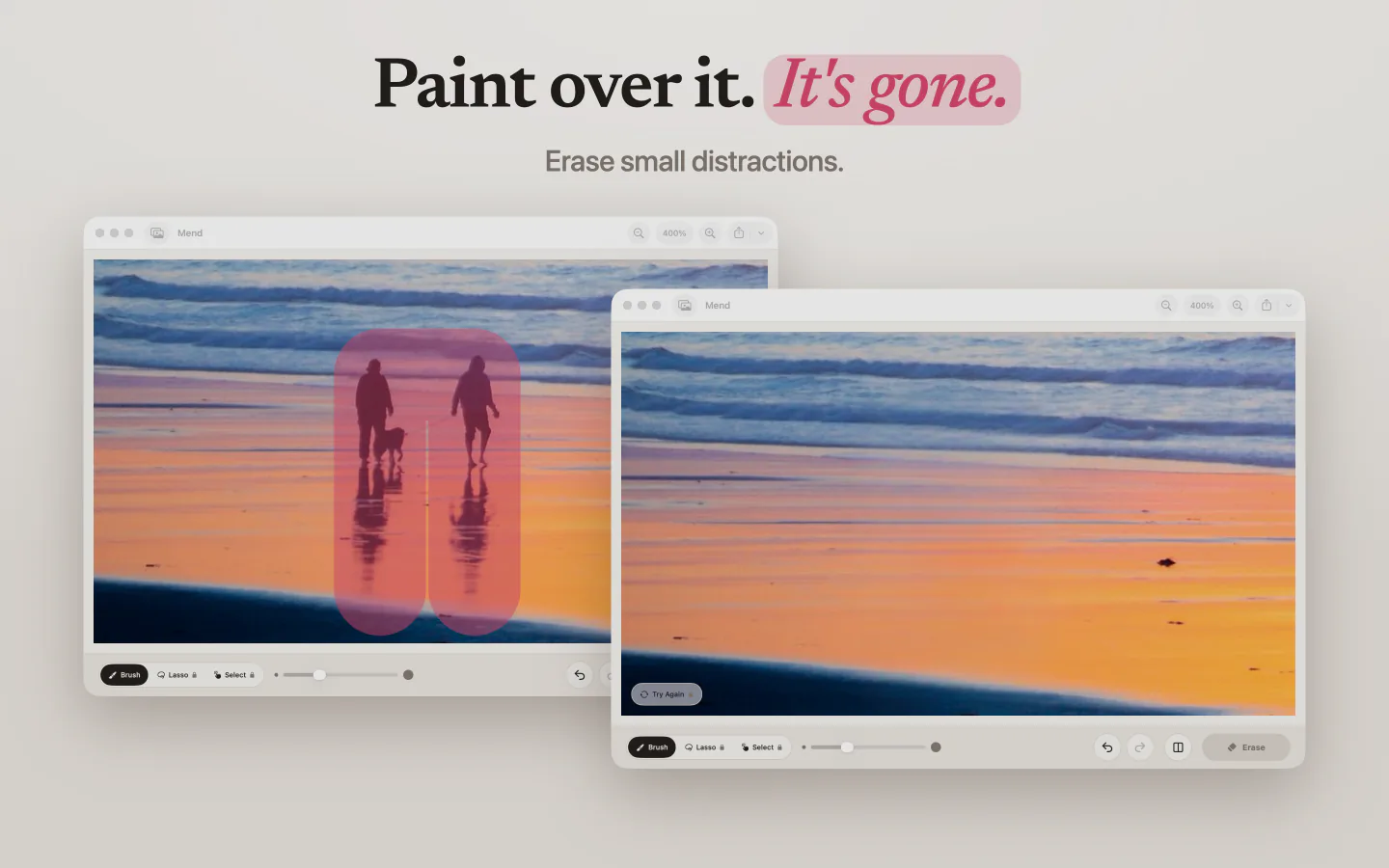
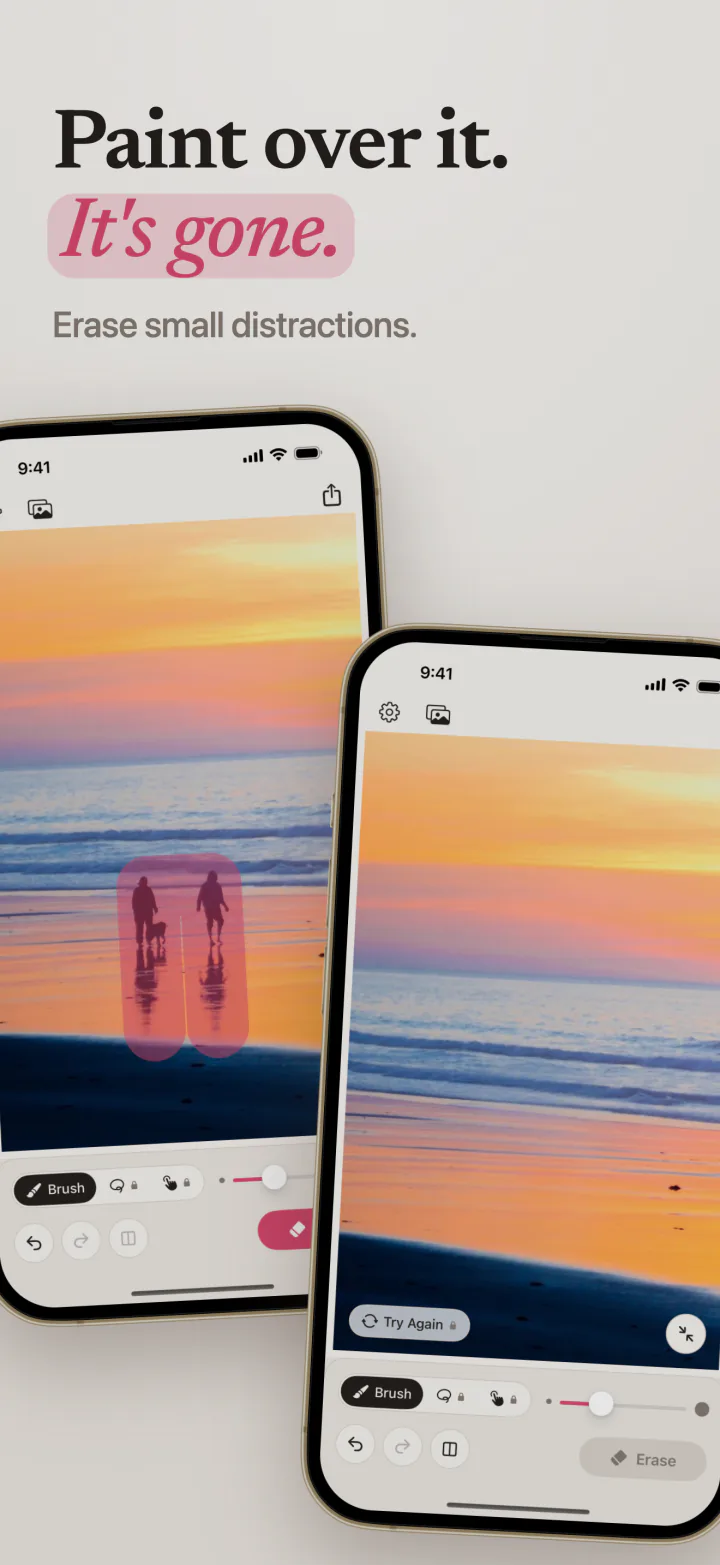
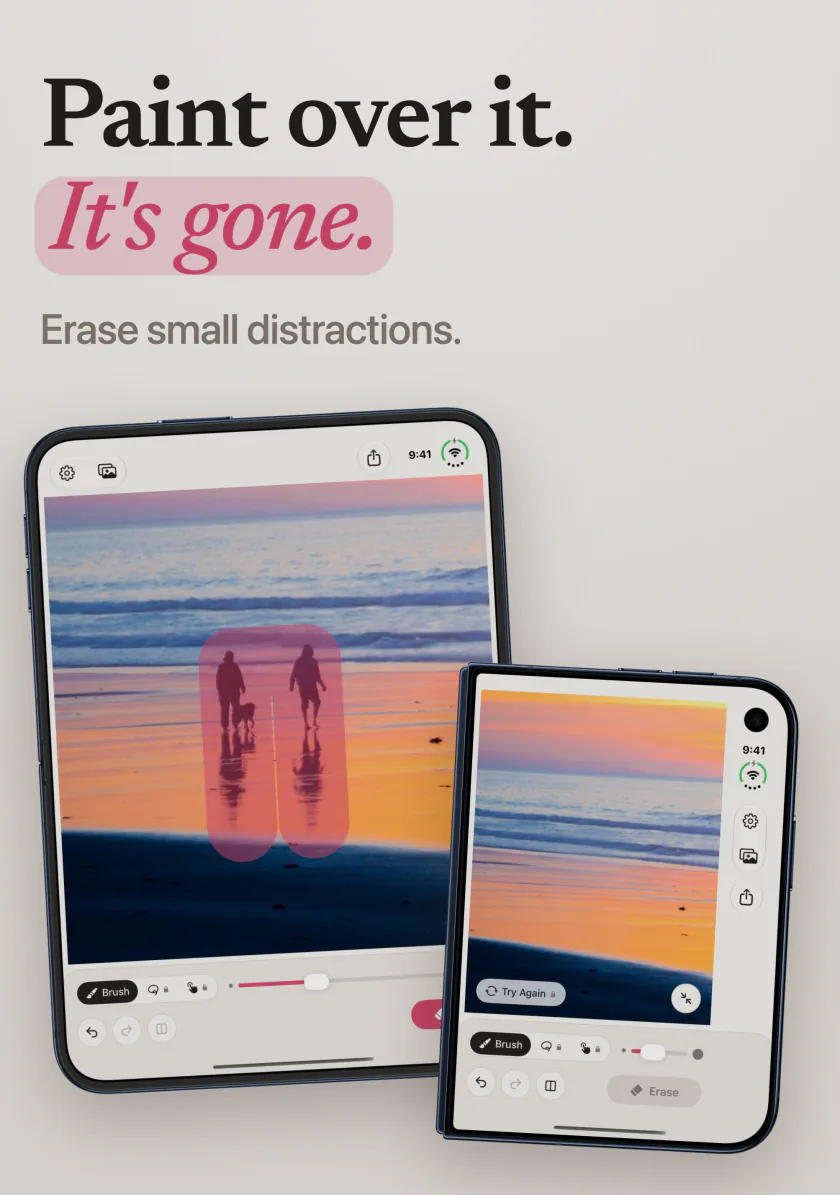
Paint over it. It’s gone.
Remove a stranger in the background, a sign, a wire, or a stain from a photo. Mend fills the gap with what was probably behind it, entirely on your device.
Free · No watermark · iOS 17+ · macOS 14+
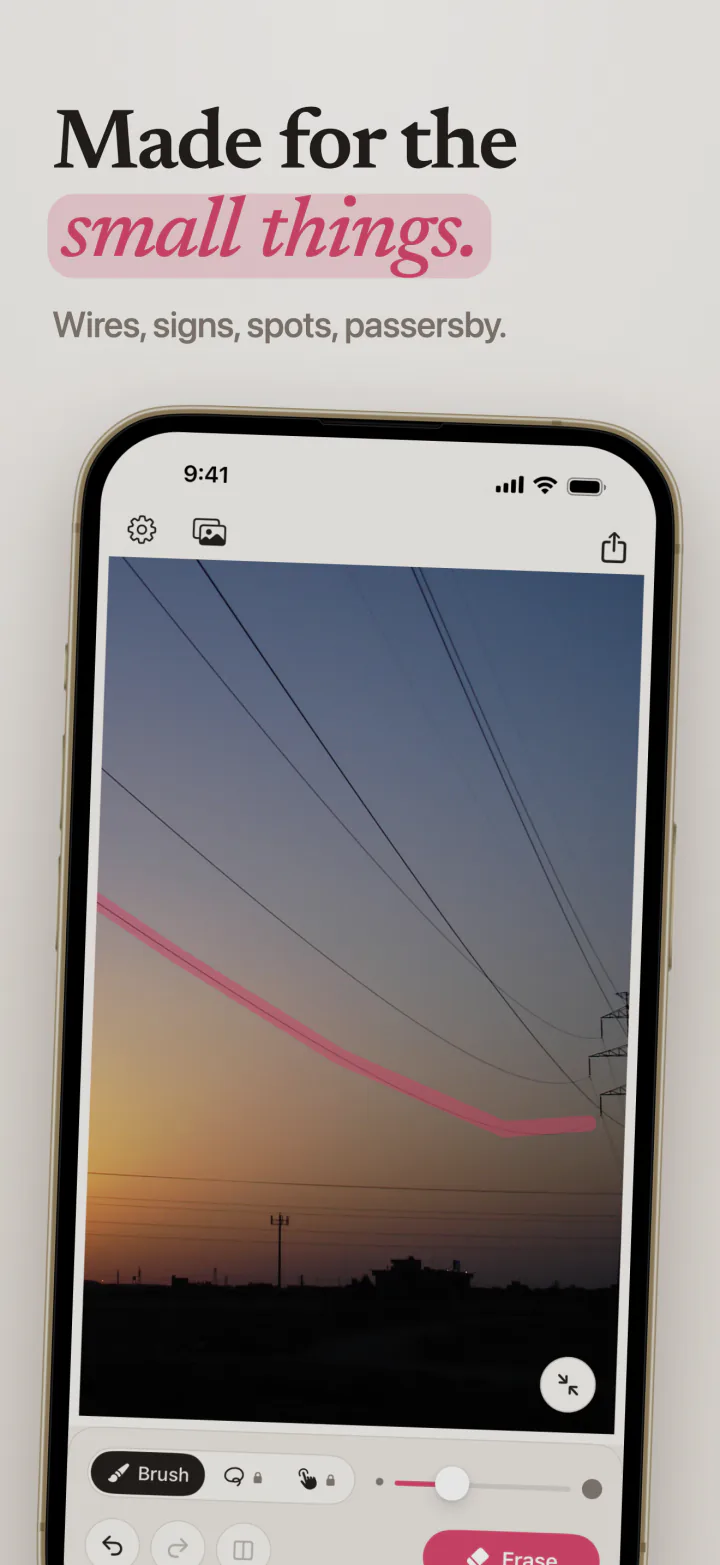
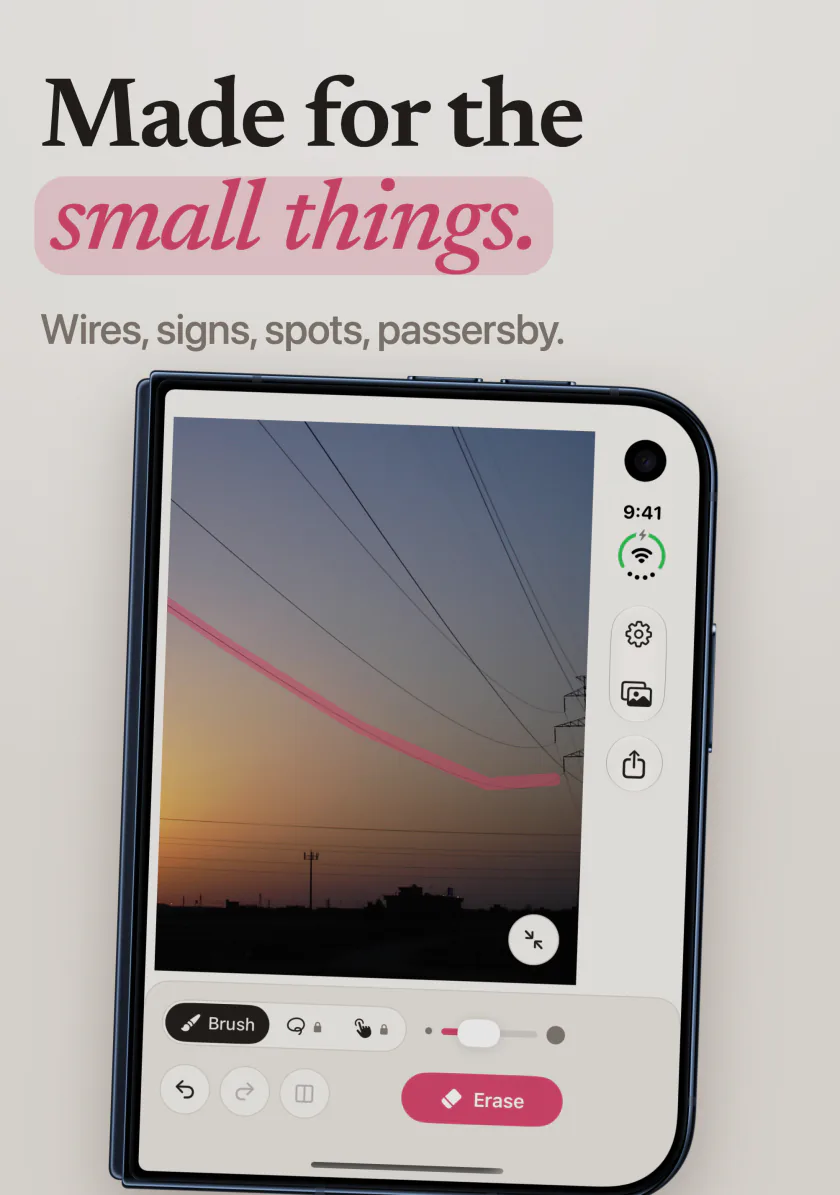
Made for the small things.
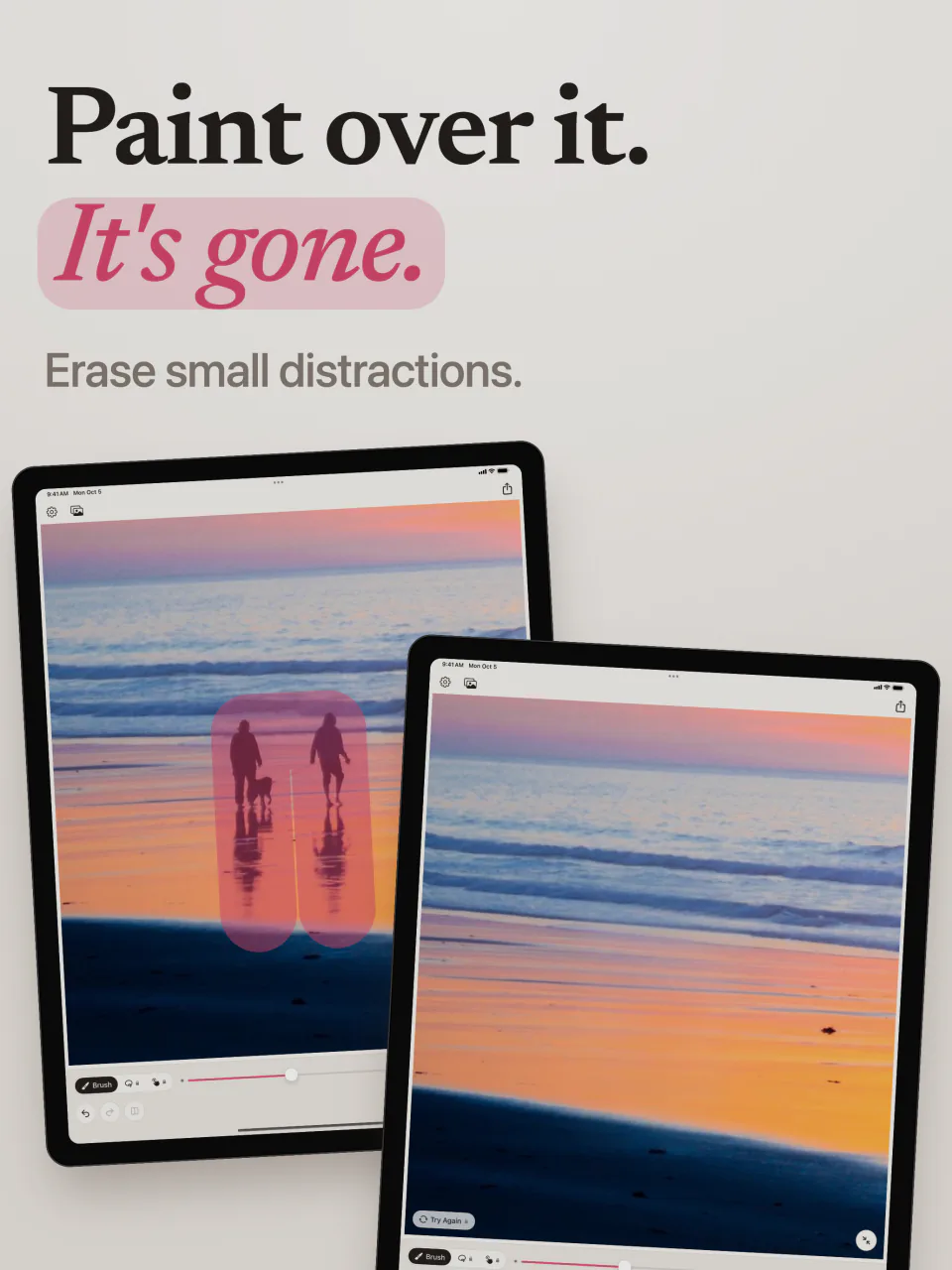
Paint over it, and it is gone
Paint over what you do not want, then tap Erase, or press Return on a Mac. Mend fills the gap with what was probably behind it. A typical erase takes about a second.
Only what you paint changes
Every pixel outside your paint stays exactly as it was. Your photo is never squashed or shrunk to be worked on, so the rest of it keeps its full detail.
On your device, nothing kept
Everything happens on your iPhone, iPad, or Mac. Photos are never uploaded, there is no account, and Mend keeps nothing after you close a photo.
The things that spoil a good photo.
Mend is honest about its limits. It is not made for removing something that fills a large part of the photo, and it tells you before you try.
Strangers in travel photos
Take out the people walking through the back of a beach, a square, or a landmark shot, so the place is what you see.
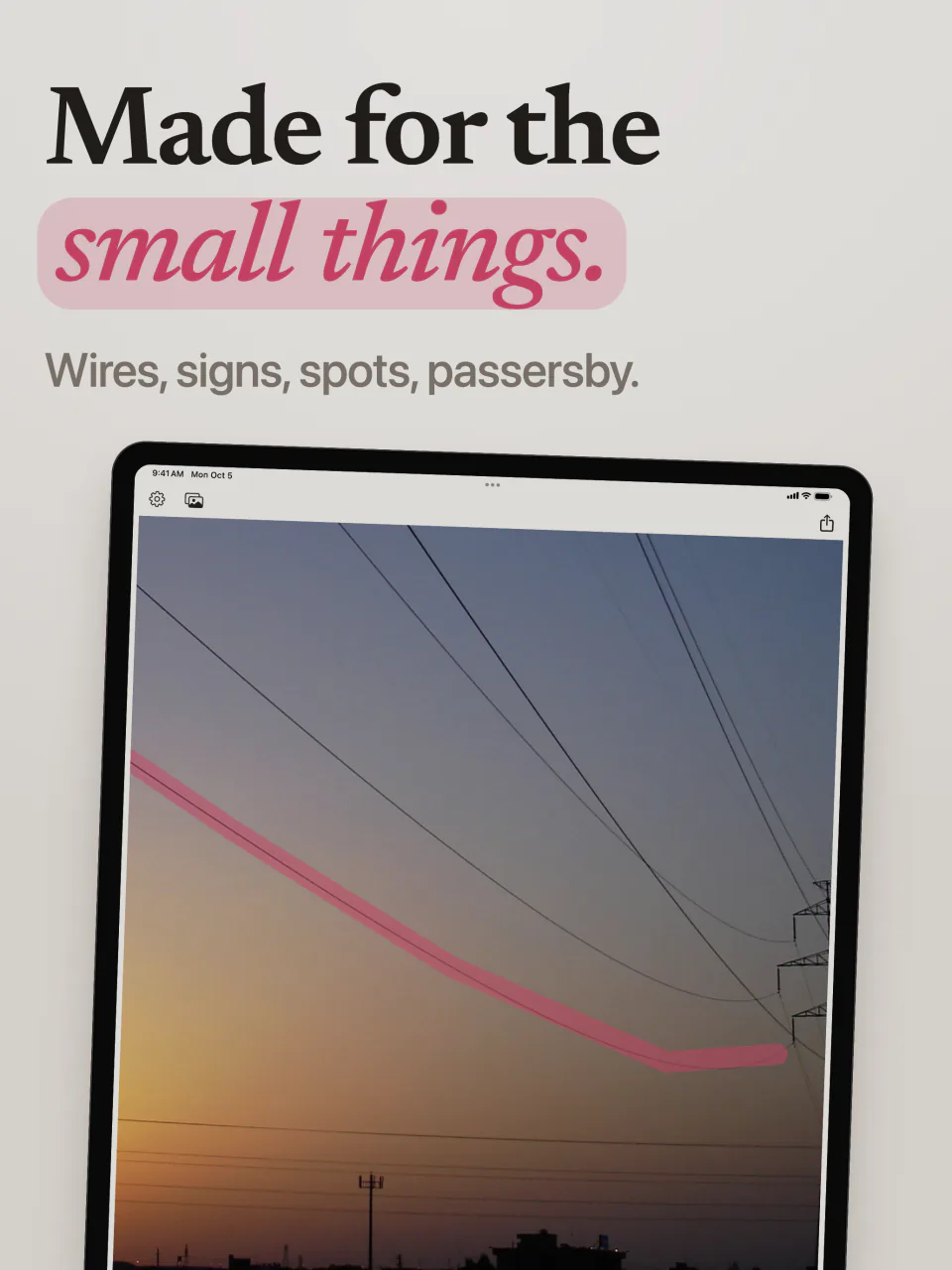
Power lines and wires
Paint along a wire crossing a sunset or a skyline and it is gone. Thin, long shapes are what Mend handles best.
Listing photos of a home
Remove a bin, a cable, or a sign from a room or a front yard before the photo goes on a rental or sale listing.
Product photos
Clean a speck of dust, a crumb, or a stain off the table under the product, for a shop or a marketplace.
Scans of old prints
Spot out the dust, marks, and small scratches that show up when an old photo is scanned.
Text and logos
Remove a word or a logo printed on a plain surface, such as a wall, a shirt, or a bag.
Tidy up the details.
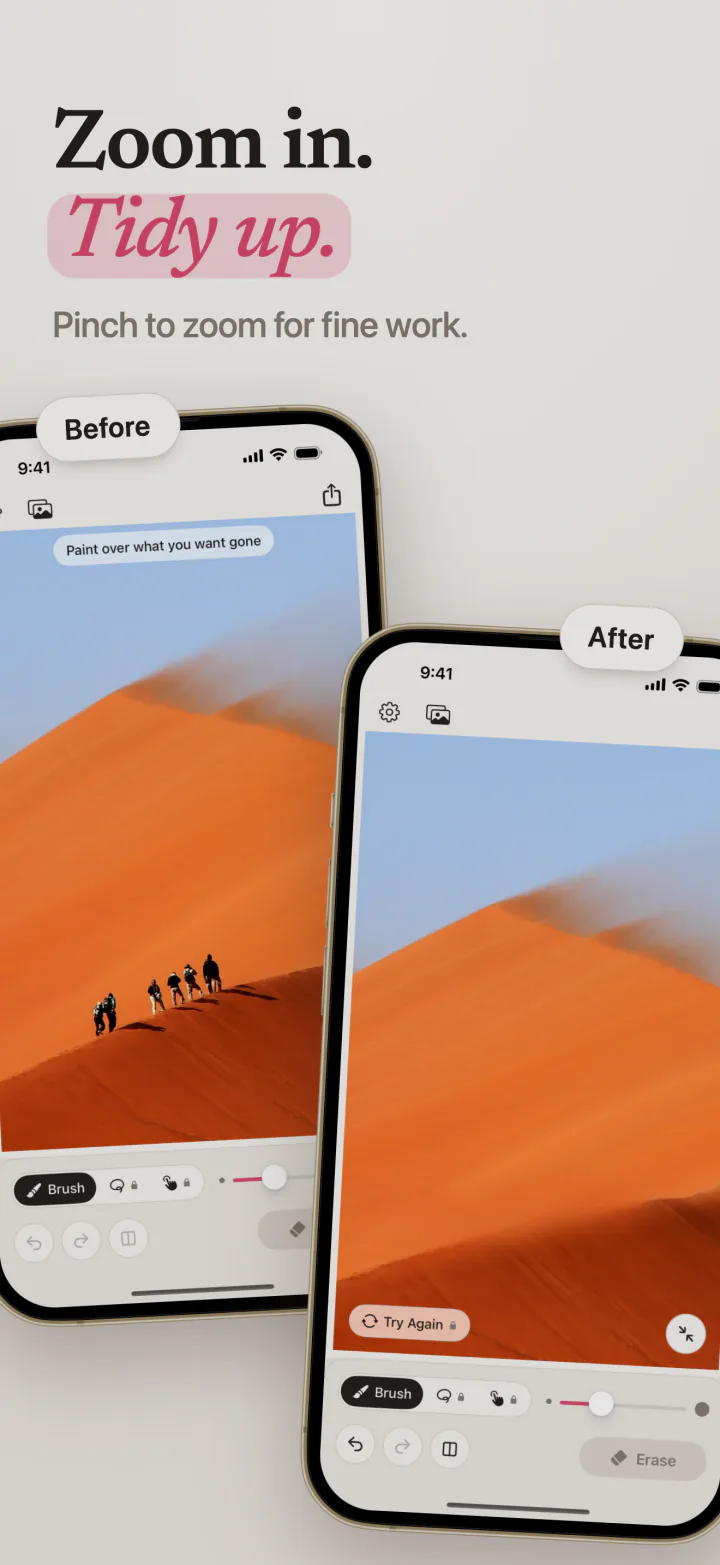
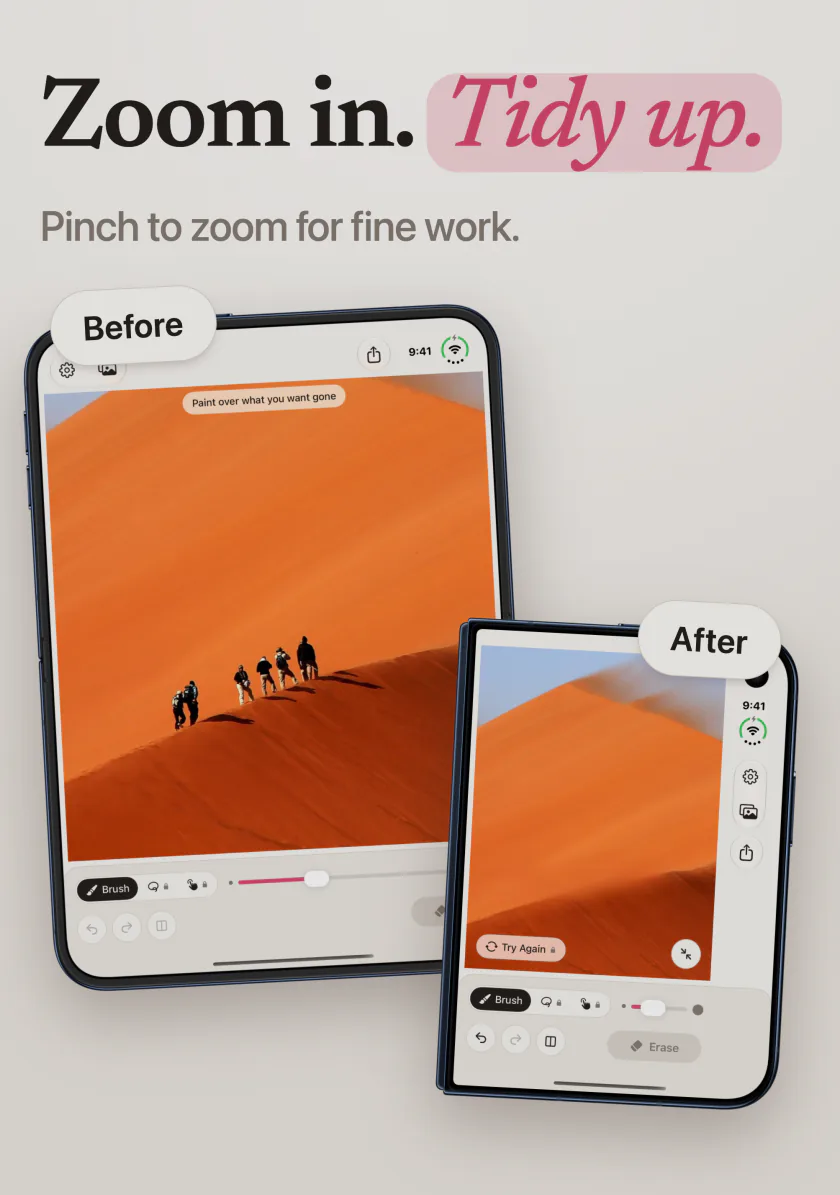
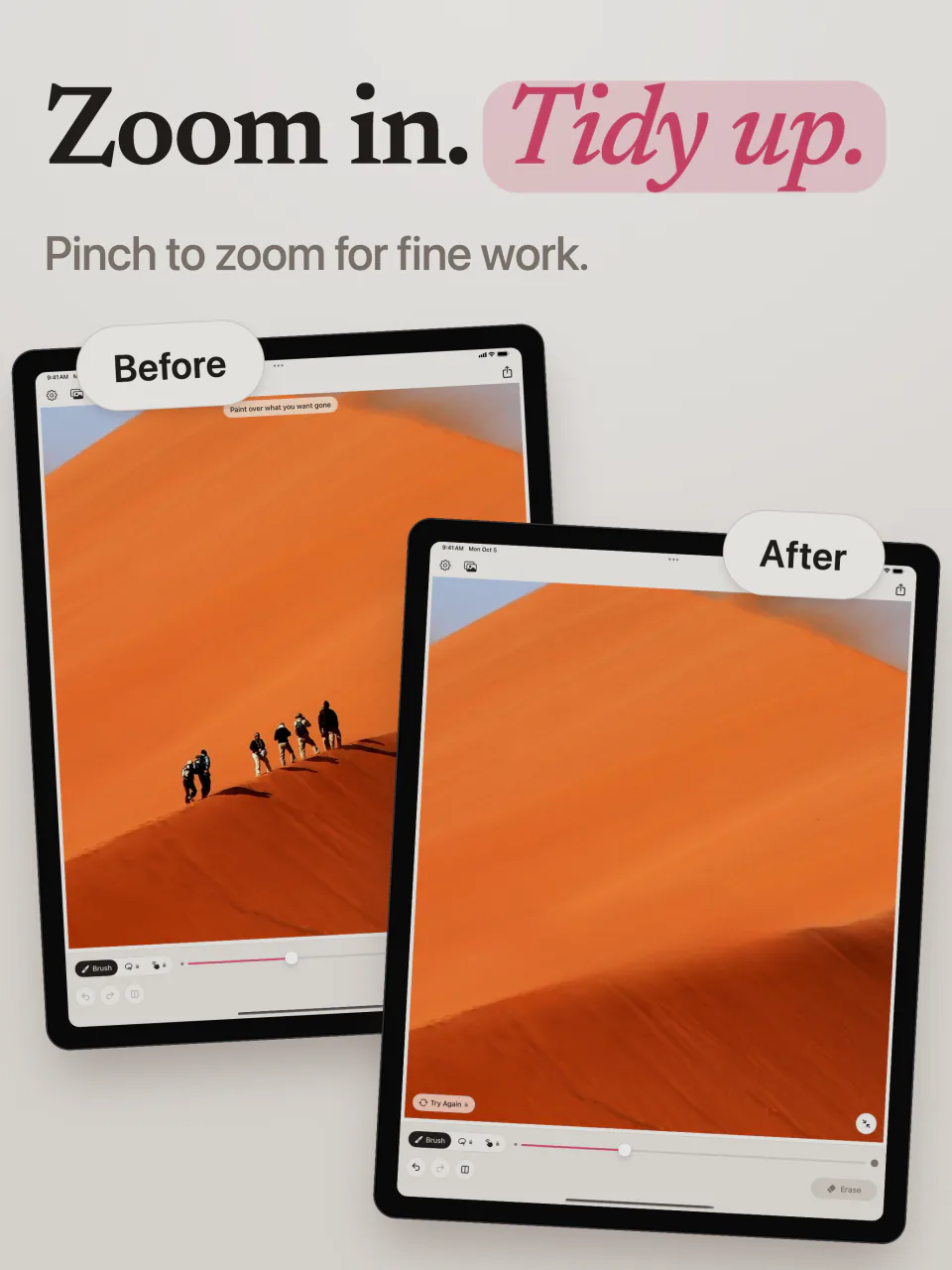
Zoom in for fine work
Pinch to zoom, or hold Command and scroll on a Mac. The brush stays the same size on screen, so zooming in makes it finer on the photo.
Compare with the original
Hold Compare, or the space bar on a Mac, to see the photo as it was, then let go to see the result.
Undo every erase
Step back and forward through every erase, with Command Z and Command Shift Z on a Mac. Nothing is final until you export.
Select with a tap
With Pro, tap or click a person or a thing and Mend paints it for you, even a small figure far down a beach.
A lasso
With Pro, draw a loop around something and it is gone, without painting it in.
Try again
With Pro, ask for a different fill for the same paint when the first one is not right. Undo is still a single step.
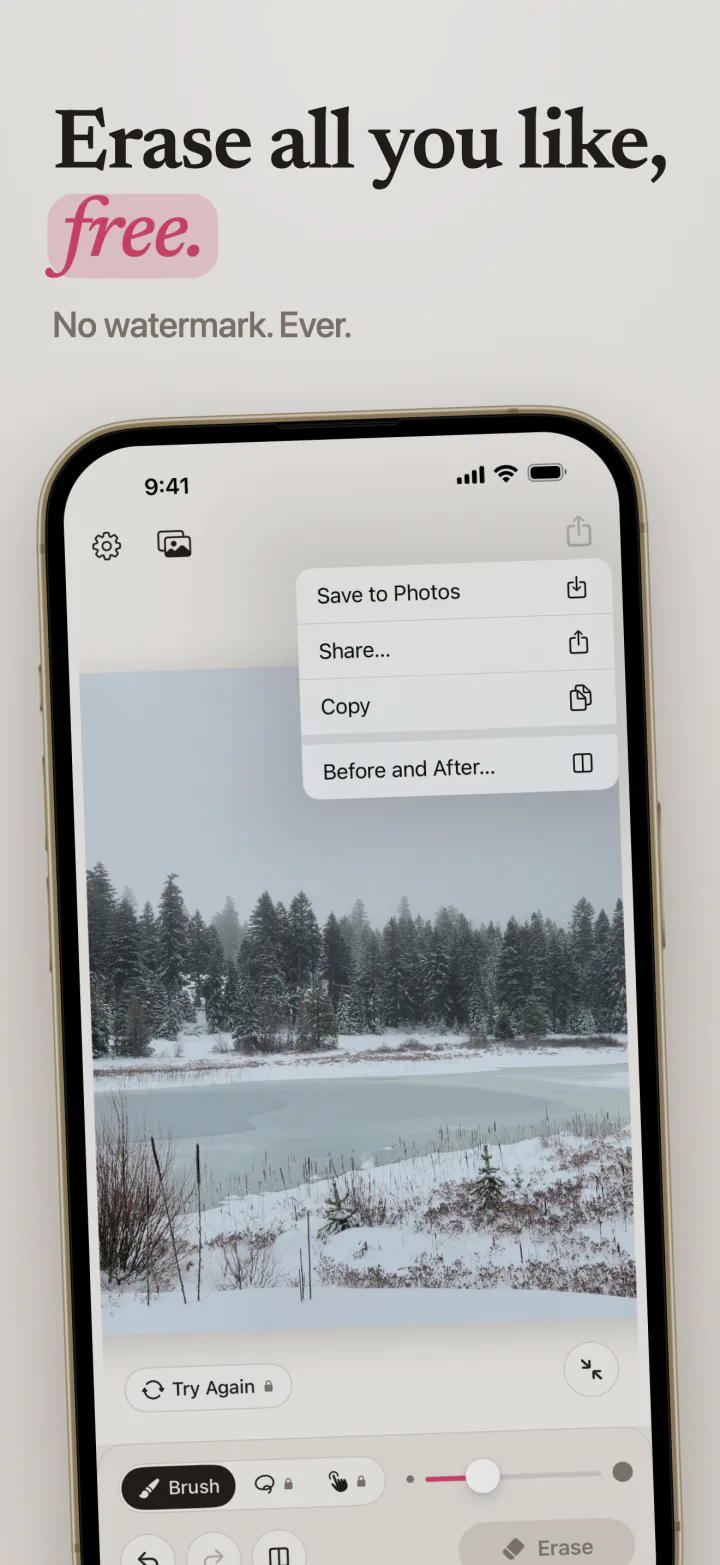
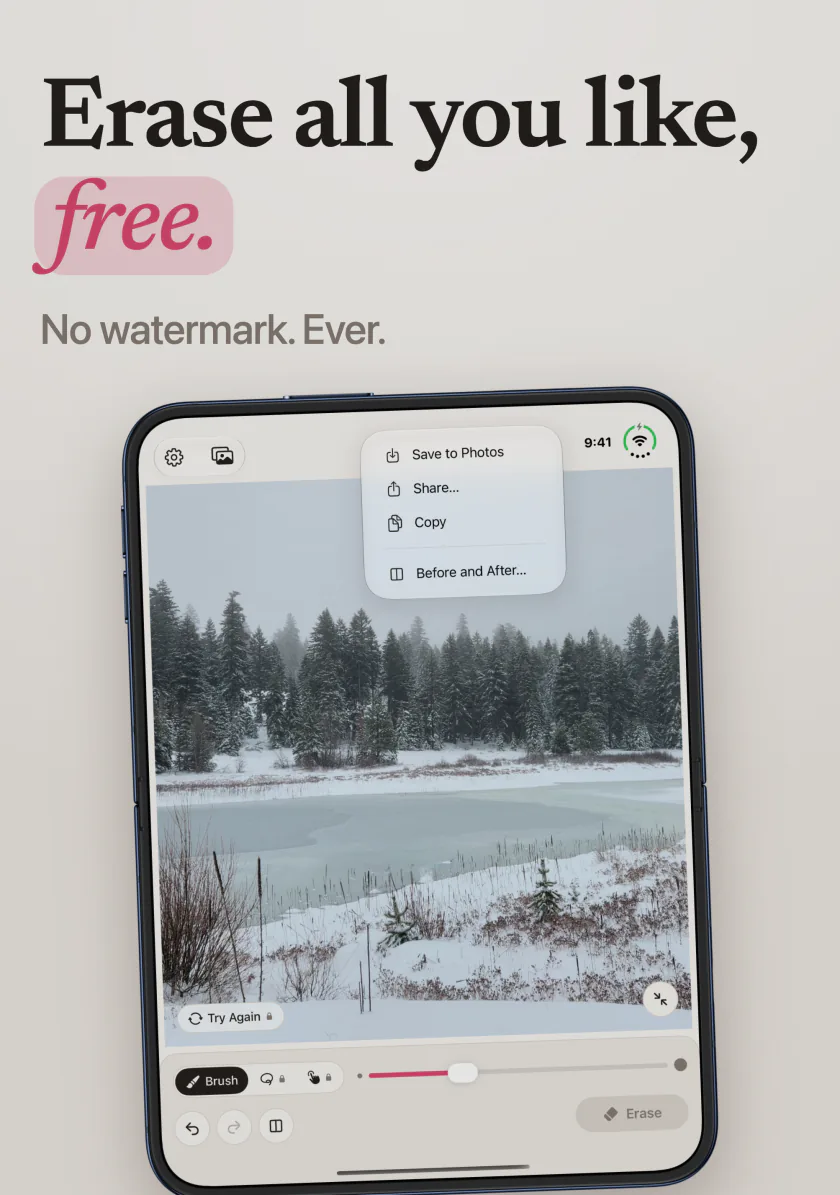
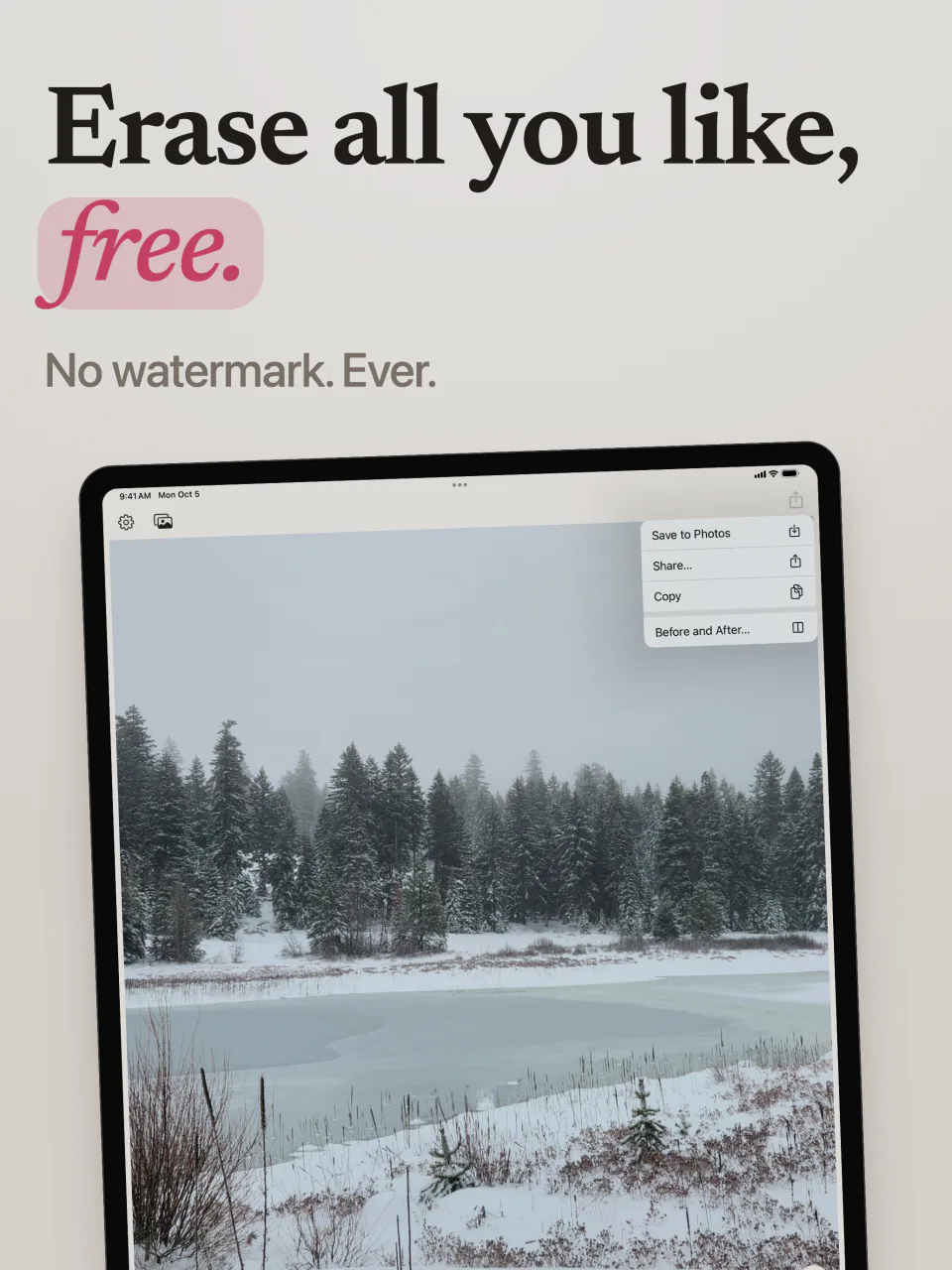
Erase all you like, free.
Erasing is never limited, and you always see the result first. Mend Pro adds unlimited exports at full size and faster ways to pick what goes, as a monthly or yearly subscription or a single lifetime purchase.
- Paint and erase, as often as you like Free
- Zoom, compare, undo, and redo Free
- No watermark, ever Free
- 3 exports a day, as JPEG up to 2048 pixels Free
- Unlimited exports, shares, and copies Pro
- Export at full size, as JPEG, HEIC, or PNG Pro
- Select with a tap, and a lasso Pro
- Try again for a different fill Pro
- Before and after pictures to share Pro
See it in action.
Paint over it, erase it, and check the result against the original.







Frequently Asked Questions
What does Mend do?
Mend removes small things from photos. Paint over a stranger in the background, a sign, a wire, or a stain, tap Erase, and Mend fills the gap with what was probably behind it.
Can Mend remove a person from a photo?
Yes, when the person is small in the frame, such as someone walking in the distance. Mend is not made for removing something that fills a large part of the photo, like the person standing next to you, because there is too little of the background left to rebuild. When you paint over a large area, Mend warns you before it tries.
Does Mend upload my photos?
No. Mend has no server. Every erase happens on your iPhone, iPad, or Mac, your photos never leave it, there is no account, and nothing is kept after you close a photo.
Is Mend free?
Erasing is free and unlimited, with no watermark, and you always see the result before anything is asked of you. Free exports are 3 a day, as JPEG, up to 2048 pixels. Mend Pro adds unlimited exports at full size, more formats, select with a tap, a lasso, try again, and before and after pictures. Pro is a monthly or yearly subscription or a single lifetime purchase.
Does Mend change the rest of my photo?
No. Only the area you painted is filled in. Every other pixel stays exactly as it was, and the photo is never shrunk to be worked on.
What if the result is not right?
Undo it, zoom in, and paint more tightly around the object. A loose paint stroke smears whatever is behind it. With Pro, try again gives you a different fill for the same paint.
Do I need Apple Intelligence to use Mend?
No. Mend runs on any iPhone or iPad with iOS 17 or later, and any Mac with macOS 14 or later. No special hardware is needed.
Is Mend on iPhone and iPad?
Yes. Mend is on the App Store for iPhone, iPad, and Mac, and one Pro purchase unlocks Pro on all of them.
Does Mend work on iPhone Duo?
Yes. Mend works on iPhone Duo folded or open. Paint on the outer screen, or unfold it and use the larger inner screen for fine work.
Keep the photo. Lose the wire.
Small distractions erased on your own iPhone, iPad, or Mac, free and with no watermark.
Requires iOS 17.0+ or macOS 14.0+